

Instagram accounts get hacked, disabled, or deleted
It happens more often than you'd think. Without a backup, years of content can vanish overnight.
There's no easy way to export your Instagram content
Instagram's data download gives you a messy archive of files. It's not organized, not automatic, and not connected to cloud storage.
Your content is an asset
Every photo, reel, and caption you've posted represents hours of creative work. Treat it like the valuable library it is.
STEP: 1
Connect Instagram and Google Drive
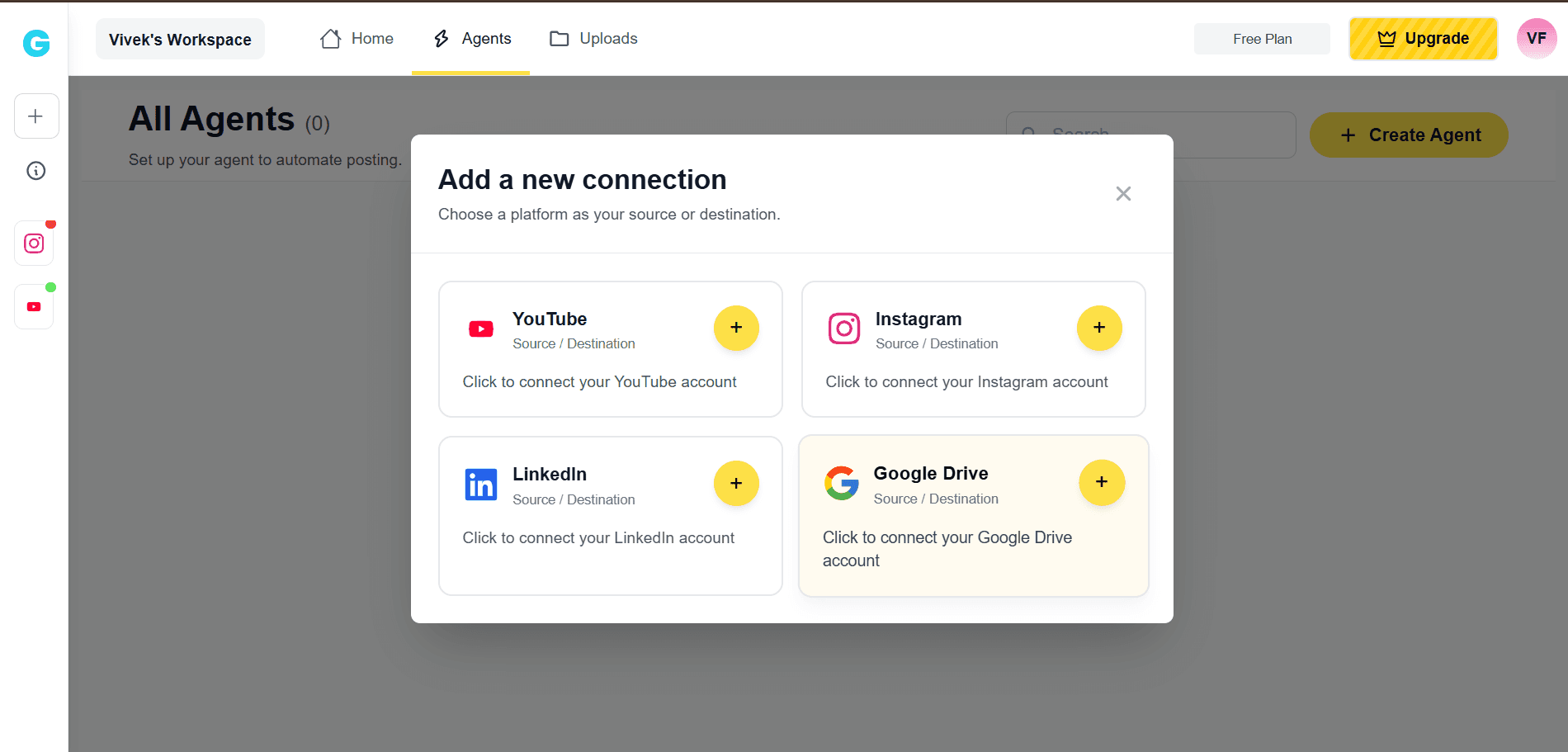
Link both accounts to GoPost. Choose which Google Drive folder to use.
STEP: 2
Select what to backup

Choose to back up all posts, or select specific content. Include photos, videos, and captions.
STEP: 3
GoPost backs it up automatically

Your Instagram content is saved to Google Drive. New posts are backed up as they're published.


Frequently Asked Questions
Is the backup automatic or do I have to trigger it manually?
It's automatic. Once set up, GoPost backs up your content to Google Drive continuously as new posts are published.
What gets backed up just images or captions too?
How is the content organized in Google Drive?
Can I back up an entire existing Instagram account, or only new posts?
Does this count against my Google Drive storage?
Protect your Instagram content library
Set it up once and never worry about losing a post again